How to use the alertwest Fire cameras
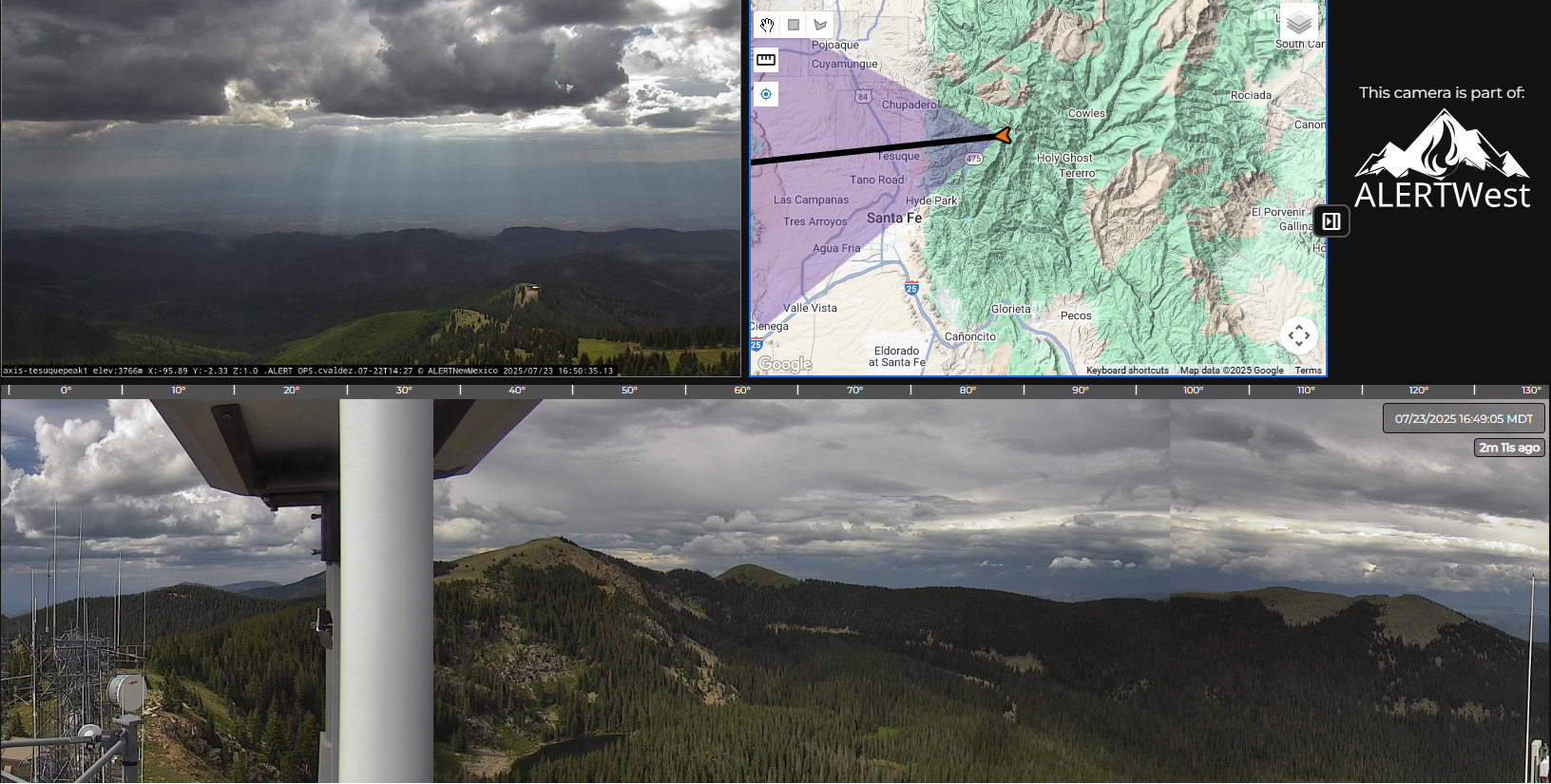
Figure 1. The public view of the camera, Tesuque Peak 1, on the AlertWest website.
Take a minute to learn how you can get the most out of the AlertWest.live images from our local fire cameras. Depending on your device and/or your browser, your screen may not look exactly the same as the sample image in Figure 1 above.
Three Types of Screens:
The screen (often) at the top of Figure 1 is the “home” image. The wide screen at the bottom is the “panorama” screen, and the map is simply called the “map”. On a small format screen like a phone, only the home and map screens will show. To see the panorama screen on a small device, look for an icon that looks a little like an hourglass lying on its side with two mountain peaks inside: it usually appears at the bottom of your device screen. Touching the icon and rotating your phone sideways (placing it into landscape mode) will reveal the latest panorama in its entirety, depending on the size of your portable device.
Understanding Screen Functions:
The best way to understand the functions of the screens is to understand how the fire camera works: the camera rotates 360 degrees every 2-3 minutes and records a fresh panorama shot. The panorama shot is uploaded to a supercomputer at University California San Diego for analysis. The image on the home screen is simply an excerpt from the panorama strip that refreshes every 2-3 minutes with the panorama, EXCEPT when a fire has been detected. The camera will automatically lock on a smoke plume or an infrared heat signature and will remain there until the camera is reset to its home position by our local dispatch agencies or the Alert West operations center in California. This is often done to monitor whether a fire is growing, changing direction, or re-igniting. You will also see the 40x zoom feature activated by dispatch to help locate and monitor the fire. Members of the public cannot change the camera direction or the level of zoom. Only authorized users at our dispatch agencies have this control.
Navigating the Panorama Screen:
You can navigate the panorama screen by using your cursor or finger (on a touch screen) to move the image to the left or right. The little angle brackets at the far left “rewinds” the panorama image back in time in 2-3 minute steps while the right bracket moves the image forward in time.
Navigating the Home Screen:
In the upper right corner of the home screen are stacked three horizontal lines, sometimes called a “hamburger”. If you touch on that a “play” button will appear. Touch the play button and a list of time loops of varying lengths will appear. Select a loop to monitor changes in the home image over time. This feature is used to help keep an eye on prescribed burns, during the day and night. During monsoon season it’s a wonderful way to monitor approaching storms. The time loops will also show how mountain winds may be affecting the cameras. As of May 2026, both camera mounts need to be further stabilized once we are able to access the cameras again. The mounts may affect the zoomed images but not the continuous search for smoke plumes & infrared signatures.
Navigating the Map:
There are a series of icons on the right allowing you to
Change the underlying map (a color relief “terrain” map is the default).
Add info from satellites that monitor fire ignitions.
Interpret the status of a camera (color of camera icon) and, in the event a fire is observed, how long the event has been under observation, based on the color of the line that indicates the direction the camera is facing.
Measure point-to-point distances from the camera.
Locate your own position on the map (provided you have adjusted your privacy settings and granted permission to the AW app to use the GPS system on your device).
Don’t Forget to Use Watch Duty!
You can access Alert West Cameras in New Mexico as well as the thousands of AlertWest cameras elsewhere in the US on the Watch Duty app. Touch the blue arrowhead icon to open a camera image and a 15 minute time loop to help monitor how a fire is changing.
Questions or Concerns?
Do you have a question or concerns that you would like us to address? If so, please send us an email using the address below. Be sure to include your name, address, phone, and the name of your HOA, neighborhood, or community association.